

Kali Linux is one of the most popular Linus Distros especially between network security and cyber security engineers. In this post, we will focus to download Kali Linux and Install it to VMWare Workstation Player. Here, we assume that you have already an installed VMware Workstation Player. So, we will directly start from Kali Linux part. If you have not an installed VMware Workstation, you can go to VMWare Workstation Player Installation Guide on IPCisco.
Firstly, let’s go to download Kali Linux and learn how to download Kali Linux
Table of Contents
How to Download Kali Linux?
To install Kali Linux to VMware Workstation Player, firstly we should have Kali Linux. To have this, we will go to Kali.org and download our Kali Linux installation file. The steps of how to download Kali Linux is given below:
1.Go to kali.org
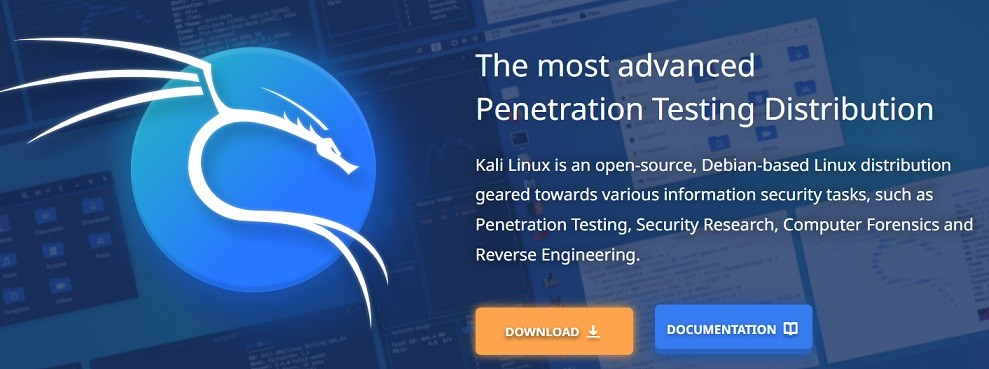
2. Click download to go to the Kali Linux download section.
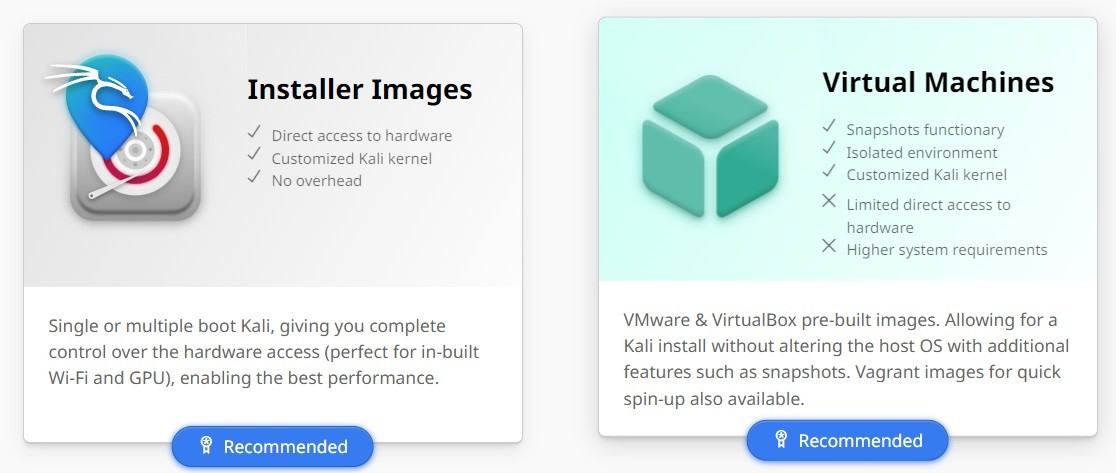
3. Select Virtual Machines to select virtual machine installation options.
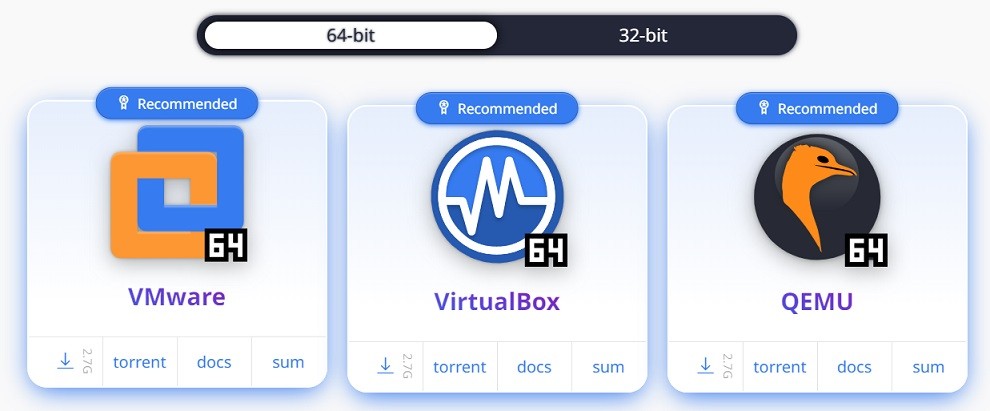
4. Here, there are different choices like VMware, VirtualBox and Qemu. You can select any of them according to your virtual program. But here, we will select VMware. Because we will install Kali Linux on VMware Workstation 16. You can select this according to your system requirements as 64-bit or 32-bit. Then, you can select the place that you will install Kali Linux.
Installing Kali Linux To VMWare Workstation Player
We have downloaded Kali Linux for VMware. Now, it is time to install it on WMware Workstation. To do this, we will follow the below steps:
1. Open Wmware Workstation 16 Player.
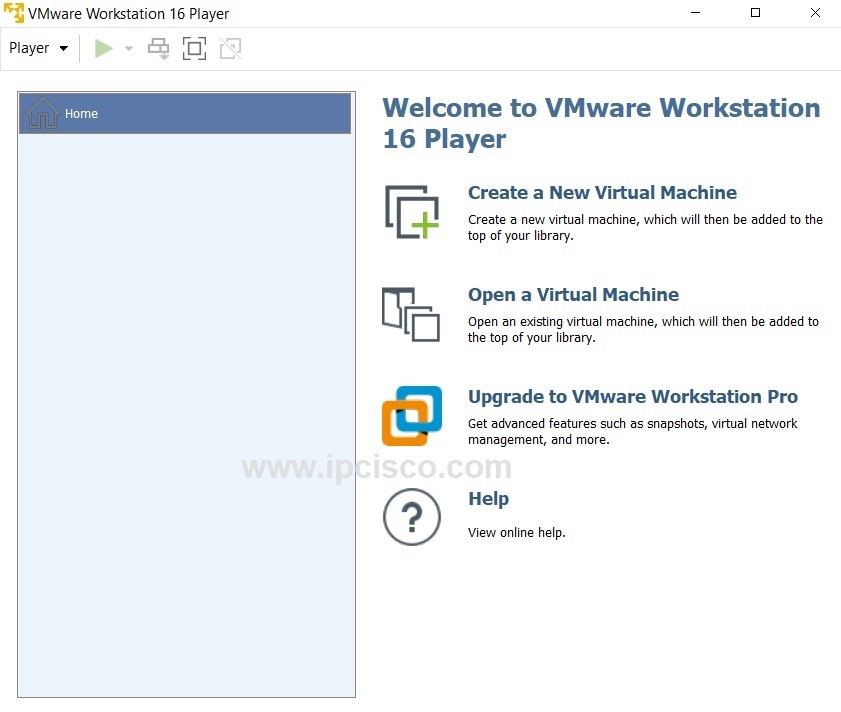
2. Click Open a Virtual Machine.
3. Select Kali Linux Installation file.
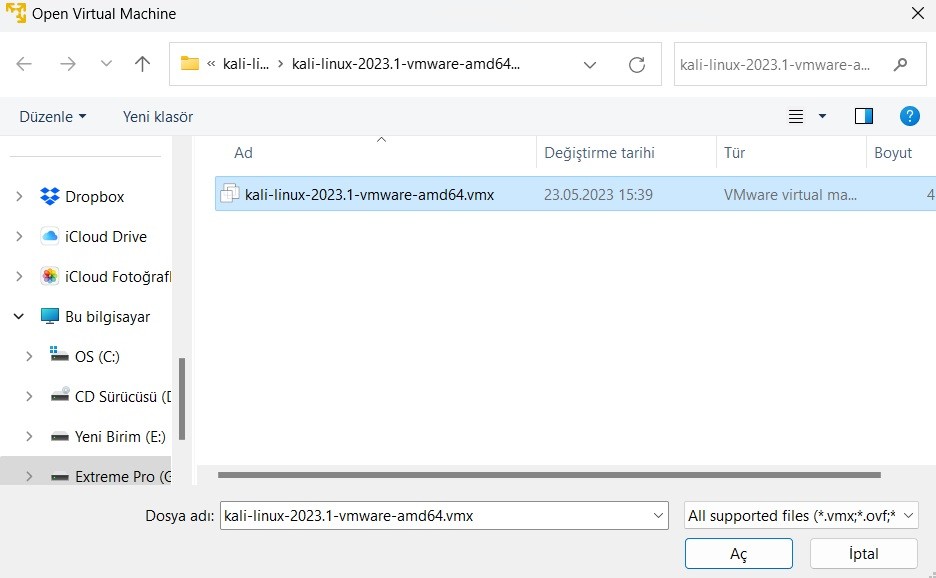
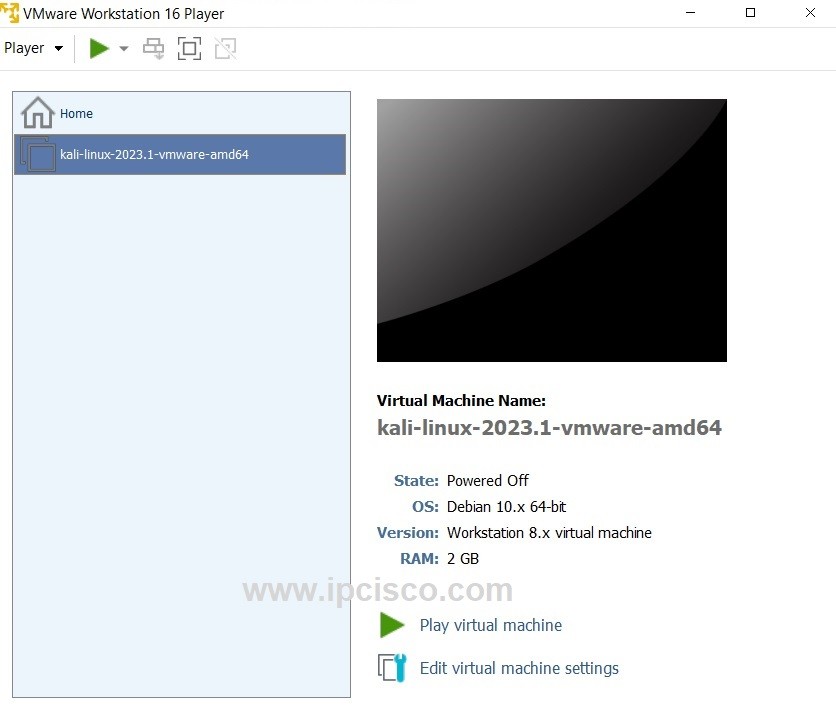
4. Then, click Kali Linux at the left side.
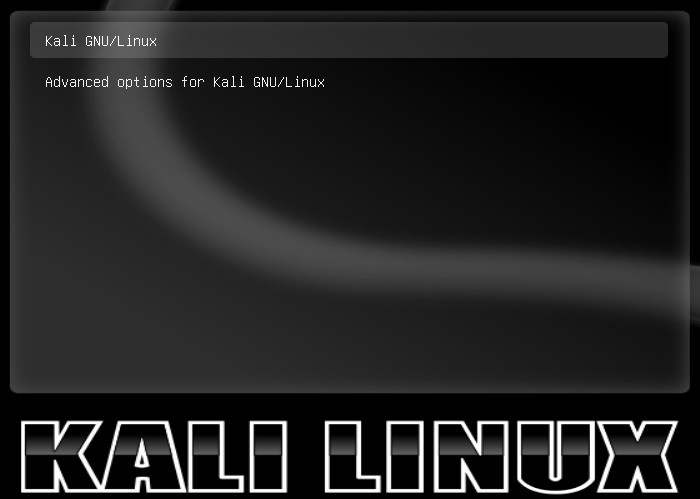
5. Select Kali GNU/Linux and enter.
6. In the login screen use the below default username and password:
Username: kali
Password: kali
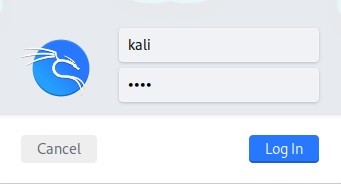
Now, you are in Kali Linux!
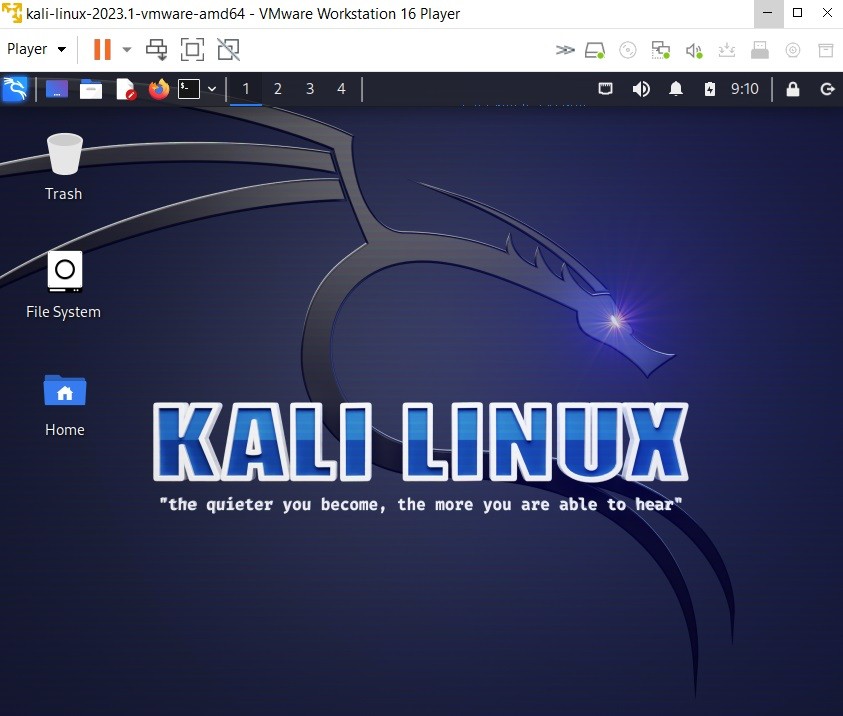
Conclusion
In this post, we have learned how to download Kali Linux and Install it to VMWare Workstation Player. Here, we have used VMware workstation 16 player. You can also do this installation with other VMware Workstation Player versions or with other Kali Linux versions.
You can also check VMware Workstation Player Eve-NG Installation!

Gokhan Kosem is a Network Engineer, Instructor and the Founder of IPCisco.com with 15+ years of experience in Cisco, Nokia, Huawei, Juniper, Linux, Service Provider Networks, Routing and Switching technologies.
He has worked on the backbone networks of major service providers and network vendors including Nortel, Alcatel-Lucent (Nokia) and has extensive hands-on experience with Cisco, Huawei, Juniper and Nokia networking technologies.
He has trained thousands of networking students worldwide through IPCisco.com, Udemy, books, labs, quizzes, and educational content across multiple social media platforms.
IPCisco.com | Best Route to Your Dreams







Leave a Reply