MSTP is an enchanced STP version. With MSTP, both multiple STP instances can be used and one more VLANs can be added to these instances. In this lesson, we will configure MSTP on Huawei switches with Huawei eNSP.
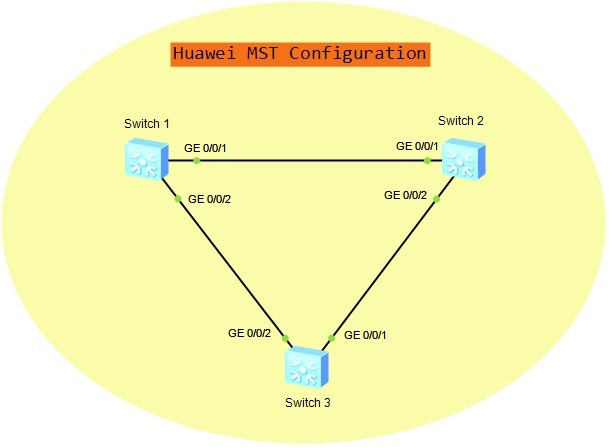
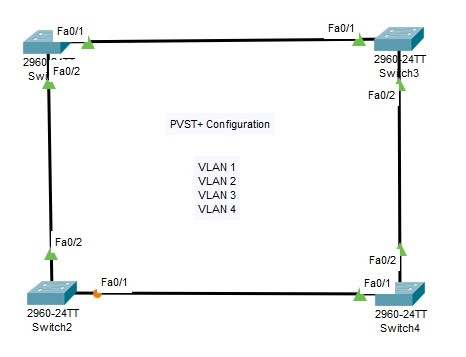
For our Huawei MSTP Configuration Example, we will use the below switched topology.
Now, let’s go to the MSTP Configuration Steps on Huawei eNSP.
Table of Contents
Configuring VLANs, Trunks and Allowed VLANs on Trunks
We will configure the switch interfaces as trunk and then we will add the allowed vlans on this trunk interfaces. We will create VLANs from 2 to 4094. The default VLAN, VLAN 1 is already exist. We will configure this on all the switches.
< Huawei-Switch-1> system-view
[Huawei-Switch-1] interface gigabitethernet0/0/1
[Huawei-Switch-1-GigabitEthernet0/0/1] port link-type trunk
[Huawei-Switch-1-GigabitEthernet0/0/1] port trunk allow-pass vlan 1 to 4094
[Huawei-Switch-1-GigabitEthernet0/0/1] quit
[Huawei-Switch-1] interface gigabitethernet0/0/2
[Huawei-Switch-1-GigabitEthernet0/0/2] port link-type trunk
[Huawei-Switch-1-GigabitEthernet0/0/2] port trunk allow-pass vlan 1 to 4094
[Huawei-Switch-1-GigabitEthernet0/0/2] quit
< Huawei-Switch-2> system-view
[Huawei-Switch-2] interface gigabitethernet0/0/1
[Huawei-Switch-2-GigabitEthernet0/0/1] port link-type trunk
[Huawei-Switch-2-GigabitEthernet0/0/1] port trunk allow-pass vlan 1 to 4094
[Huawei-Switch-2-GigabitEthernet0/0/1] quit
[Huawei-Switch-2] interface gigabitethernet0/0/2
[Huawei-Switch-2-GigabitEthernet0/0/2] port link-type trunk
[Huawei-Switch-2-GigabitEthernet0/0/2] port trunk allow-pass vlan 1 to 4094
[Huawei-Switch-2-GigabitEthernet0/0/2] quit
< Huawei-Switch-3> system-view
[Huawei-Switch-3] interface gigabitethernet0/0/1
[Huawei-Switch-3-GigabitEthernet0/0/1] port link-type trunk
[Huawei-Switch-3-GigabitEthernet0/0/1] port trunk allow-pass vlan 1 to 4094
[Huawei-Switch-3-GigabitEthernet0/0/1] quit
[Huawei-Switch-3] interface gigabitethernet0/0/2
[Huawei-Switch-3-GigabitEthernet0/0/2] port link-type trunk
[Huawei-Switch-3-GigabitEthernet0/0/2] port trunk allow-pass vlan 1 to 4094
[Huawei-Switch-3-GigabitEthernet0/0/2] quit
MST Mode Configuration
To set STP mode as MSTP, we will use “stp mode mstp” command on each switch.
[Huawei-Switch-1] stp mode mstp
[Huawei-Switch-2] stp mode mstp
[Huawei-Switch-3] stp mode mstp
MST Region Configuration
We will start to configure MSTP Region with “stp region-configuration” command. After that, we will configure MSTP Region name. Then, we will set the instance-vlan mappings. All the VLANs are mapped to MSTI 0 by default. We will configure this new mapping manually.
Lastly, we will activate the MST Region configuration with “activate region-configuration” command.
[Huawei-Switch-1] stp region-configuration
[Huawei-Switch-1-mst-region] region-name OurRegion
[Huawei-Switch-1-mst-region] instance 1 vlan 1 to 3
[Huawei-Switch-1-mst-region] instance 2 vlan 4 to 6
[Huawei-Switch-1-mst-region] active region-configuration
[Huawei-Switch-1-mst-region] quit
[Huawei-Switch-2] stp region-configuration
[Huawei-Switch-2-mst-region] region-name OurRegion
[Huawei-Switch-2-mst-region] instance 1 vlan 1 to 3
[Huawei-Switch-2-mst-region] instance 2 vlan 4 to 6
[Huawei-Switch-2-mst-region] active region-configuration
[Huawei-Switch-2-mst-region] quit
Gokhan Kosem is a Network Engineer, Instructor and the Founder of IPCisco.com with 15+ years of experience in Cisco, Nokia, Huawei, Juniper, Linux, Service Provider Networks, Routing and Switching technologies.
He has worked on the backbone networks of major service providers and network vendors including Nortel, Alcatel-Lucent (Nokia) and has extensive hands-on experience with Cisco, Huawei, Juniper and Nokia networking technologies.
He has trained thousands of networking students worldwide through IPCisco.com, Udemy, books, labs, quizzes, and educational content across multiple social media platforms.









Leave a Reply