
- COURSES
- SPECIALS
- BLOG
- MEMBERS
- SHOP
- BOOKSHELF
- ABOUT
- ENROLL HERE

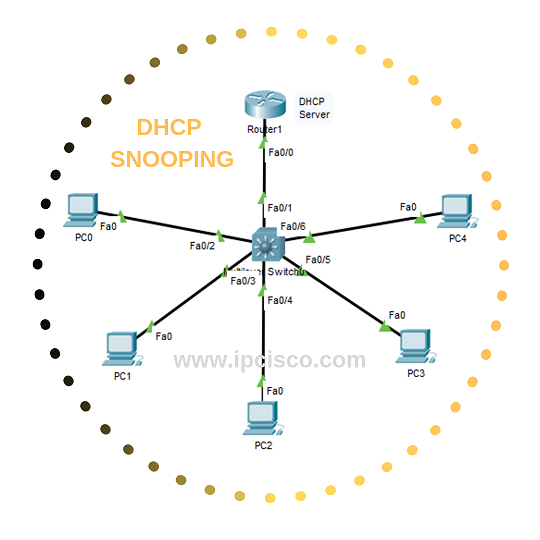
Table of Contents
DHCP Snooping Configuration is a Layer 2 security feature that protects the network against unauthorized or malicious DHCP servers. In this lesson, we will learn How to use this important mechanims and How to Configure DHCP Snooping on Cisco swithes.
For our DHCP Snooping Configuration Example, we will use the below simple topology:
We will complete these configuration steps one by one:
Now, let’s focus on our DHCP Snooping example and learn the DHCP Snooping configuration step by step.
Firstly, we will configure interface IP address of the router. Here, we will use 192.168.0.1/24 ip address on fastethernet0/1 interface. Then we will enable this interface with “no shutdown” command.
Router# config terminal
Router(config)# interface fastethernet 0/1
Router(config-if)# ip address 192.168.0.1 255.255.255.0
Router(config-if)# no shutdown
Router(config-if)# exit
Router(config)#
By the way, this router will be our DHCP Server. Now, let’s do DHCP configurations on this router.
To configure the DHCP Server on this router, we will create a DHCP pool named XYZ. To do this, we will use the “ip dhcp pool XYZ” command. Then, we will define the IP address range for this pool with “network” command. Here, we will use 192.168.0.0/24 IP block. Lastly, we will save the configuration.
Router(config)# ip dhcp pool XYZ
Router(dhcp-config)# network 192.168.0.0 255.255.255.0
Router(dhcp-config)# end
Router# copy running-config startup-config
After configuring the DHCP Server on the router, it is time to configure DHCP Snooping on the switch. Firstly, we will enable DHCP Snooping on the switch with “ip dhcp snooping” command in the global configuration mode. It can be enabled also for specific VLANs. Here, we will also enable DHCP snooping for VLAN 1. To do this, we will use “ip dhcp snooping vlan <vlan-id>” command.
Switch# configure terminal
Switch(config)# ip dhcp snooping
Switch(config)# ip dhcp snooping vlan 1
Switch(config)# end
In the DHCP Snooping mechanism, there are two port types. One of them is a trusted port, and the other is an untrusted port. Here, we will configure the trusted port. In this example, we have only one trusted port, which is the port on the switch connected to the DHCP Server (Router).
To do this, we will enter the interface configuration mode and configure the interface as a trusted port with the “ip dhcp snooping trust” command.
Switch(config)# interface fastethernet 0/1
Switch(config-if)# ip dhcp snooping trust
Switch(config-if)# end
There is one more important configuration step. We can also configure the maximum number of DHCP packets that can be received on an interface per second. If this rate exceeds the configured limit, the switch drops the incoming DHCP packets. Here, we will set the rate limit to 20 packets per second. Laslty, we will save our configuration.
Switch(config)# interface fastethernet 0/1
Switch(config-if)# ip dhcp snooping limit rate 20
Switch(config-if)# end
Switch# copy running-config startup-config
Now, it is time to verify our DHCP Snooping configuration. To do this, we will use “show ip dhcp snooping” and “show ip dhcp snooping binding” commands.
The “show ip dhcp snooping” command displays the current DHCP Snooping configuration, including the enabled VLANs, trusted interfaces, and other DHCP Snooping settings.
Switch# show ip dhcp snooping
Switch DHCP snooping is enabled
DHCP snooping is configured on following VLANs:1
DHCP snooping is operational on following VLANs:1
DHCP snooping is configured on the following L3 Interfaces:

Insertion of option 82 is enabled
Option 82 on untrusted port is not allowed
Verification of hwaddr field is enabled

Interface                  Trusted    Rate limit (pps)
------------------------   -------    ----------------
FastEthernet0/1            yes        20
FastEthernet0/2            no         20
FastEthernet0/3            no         20
FastEthernet0/4            no         20
The “show ip dhcp snooping binding” command displays the DHCP Snooping binding table, which contains the IP address, MAC address, VLAN and interface information of the DHCP clients.
Switch# show ip dhcp snooping binding

MacAddress          IpAddress        Lease(sec) Type          VLAN Interface
------------------  ---------------  ---------- ------------- ---- ----------------
00D0.BC12.3456      192.168.0.2      86345      dhcp-snooping 1    FastEthernet0/2
00D0.BC65.4321      192.168.0.3      86298      dhcp-snooping 1    FastEthernet0/3
00D0.BCAA.1122      192.168.0.4      86271      dhcp-snooping 1    FastEthernet0/4
Trusted ports are interfaces connected to legitimate DHCP servers or trusted network devices. Untrusted ports are typically connected to end users and cannot send DHCP server messages.
DHCP Snooping creates a DHCP binding table containing MAC addresses, IP addresses and VLAN information. Dynamic ARP Inspection (DAI) uses this table to validate ARP packets and prevent ARP spoofing attacks.
Yes. DHCP Snooping blocks unauthorized or rogue DHCP servers by allowing DHCP offer and acknowledgment messages only from trusted switch ports.
Most Cisco Layer 2 and Layer 3 switches support DHCP Snooping, including Catalyst series switches commonly used in enterprise networks.
No. DHCP Snooping is disabled by default on Cisco switches and must be manually configured for specific VLANs and interfaces.
If all ports are untrusted, legitimate DHCP server responses will also be blocked, preventing clients from receiving IP addresses automatically.

Gokhan Kosem is a Network Engineer, Instructor and the Founder of IPCisco.com with 15+ years of experience in Cisco, Nokia, Huawei, Juniper, Linux, Service Provider Networks, Routing and Switching technologies.
He has worked on the backbone networks of major service providers and network vendors including Nortel, Alcatel-Lucent (Nokia) and has extensive hands-on experience with Cisco, Huawei, Juniper and Nokia networking technologies.
He has trained thousands of networking students worldwide through IPCisco.com, Udemy, books, labs, quizzes, and educational content across multiple social media platforms.
IPCisco.com | Best Route to Your Dreams






Networking is life
Certainly yes :)
Thanx
Welcome